
How to instantly fix product image colors, adjust white balance, and access professional color grading directly inside your browser completely for free.
Have you ever snapped a brilliant product or lifestyle photo, only to realize the colors look completely washed out, cold, or yellow? Incorrect lighting, mismatched camera sensors, and unpredictable environments frequently distort fabric textures and true-to-life tones. If you run an e-commerce storefront or manage digital design assets, inaccurate colors are a quiet killer for your conversion rates.
In the past, bringing back natural saturation required a deep understanding of histograms, curves, and color wheels inside expensive software. Today, advanced neural networks can automatically map out the tonal ranges of a digital photograph and fix lighting imbalances instantly. By leveraging an AI Auto Color Correction Online utility, anyone can achieve crisp, accurate results without a steep learning curve.
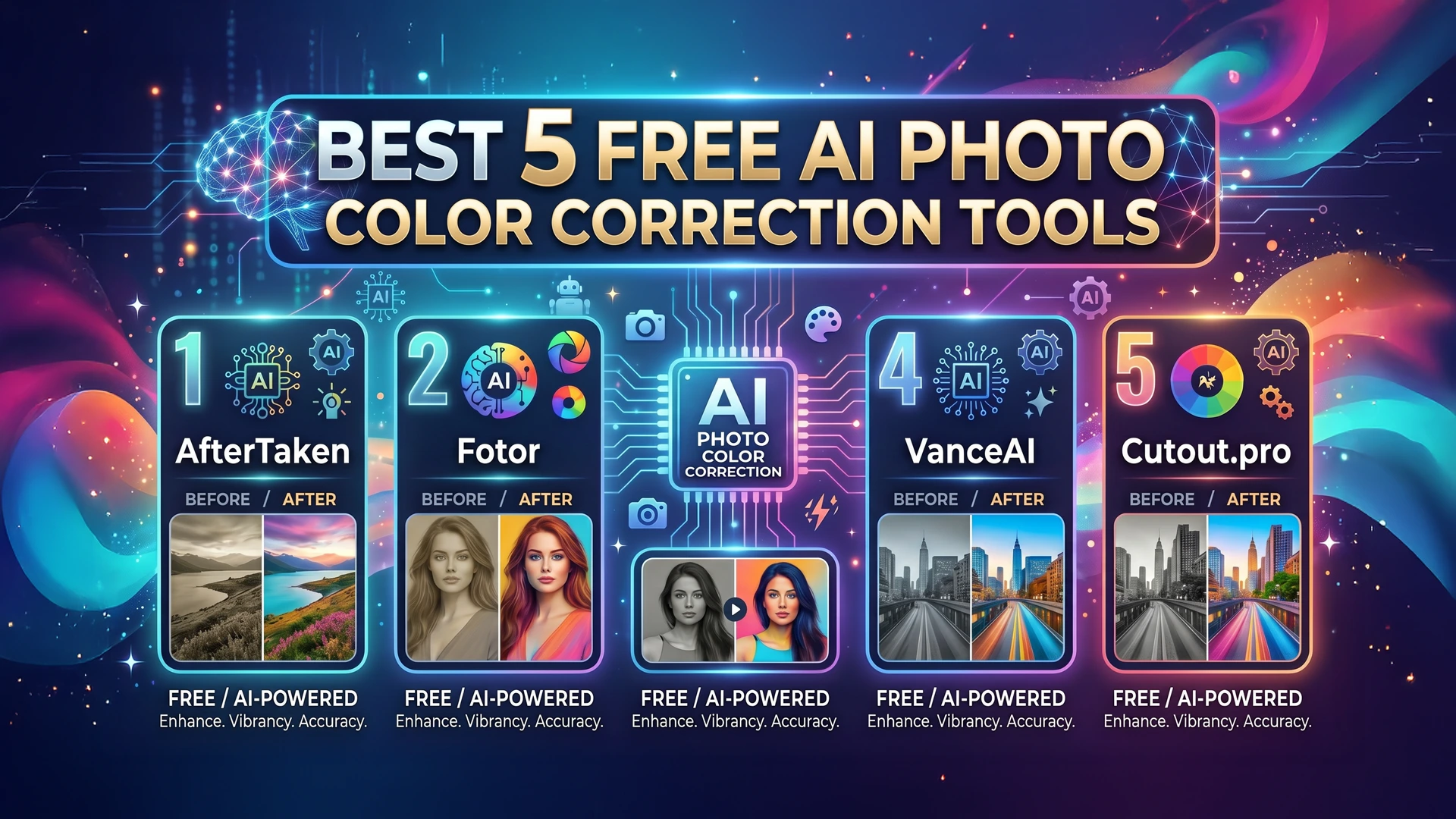
Having spent years building specialized image processing pipelines, I understand how critical color accuracy is for building buyer confidence. In my experience, manual correction can easily bottleneck your asset pipeline, while a dedicated Free AI Photo Enhancer lets you process massive batches effortlessly. Here is our completely updated breakdown of the top 5 free AI photo color correction tools available right now.
1. AfterTaken AI Photo Color Correction
Securing the top spot on our list is AfterTaken’s specialized color correction framework. Unlike generalized cloud filters that blindly oversaturate images, AfterTaken is custom-engineered to handle complex lighting scenarios—making it an exceptional tool to fix image colors.
AfterTaken strikes a beautiful, professional balance by offering two distinct operational workflows side-by-side:
• Automatic AI Presets: The built-in neural engine scans the image structural details, analyzes lighting fields, and allows you to correct white balance in one click. There are total 12 AI color presets to apply into your image directly and enhance your Image perfectly.
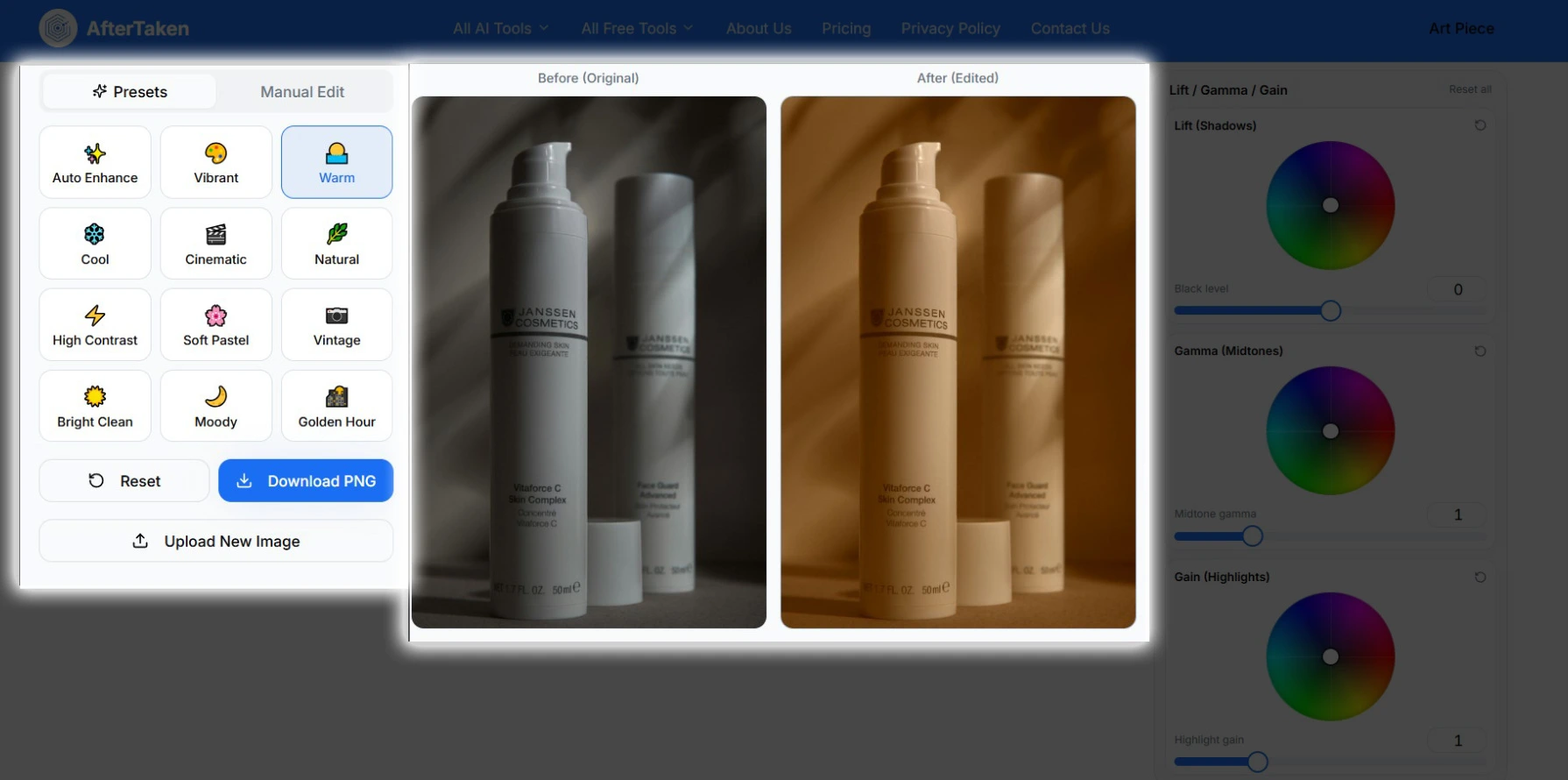
• Advanced Manual Controls: AI models don’t always know your personal creative intent. That is why AfterTaken includes an integrated Professional Online Color Grading Tool. Once the AI completes its initial pass, you will get manual control over your image. You can definitely adjust Brightness, Contrast, Saturation, Hue, Exposure, Temperature, Highlights, Shadows and Sharpness using slider control.
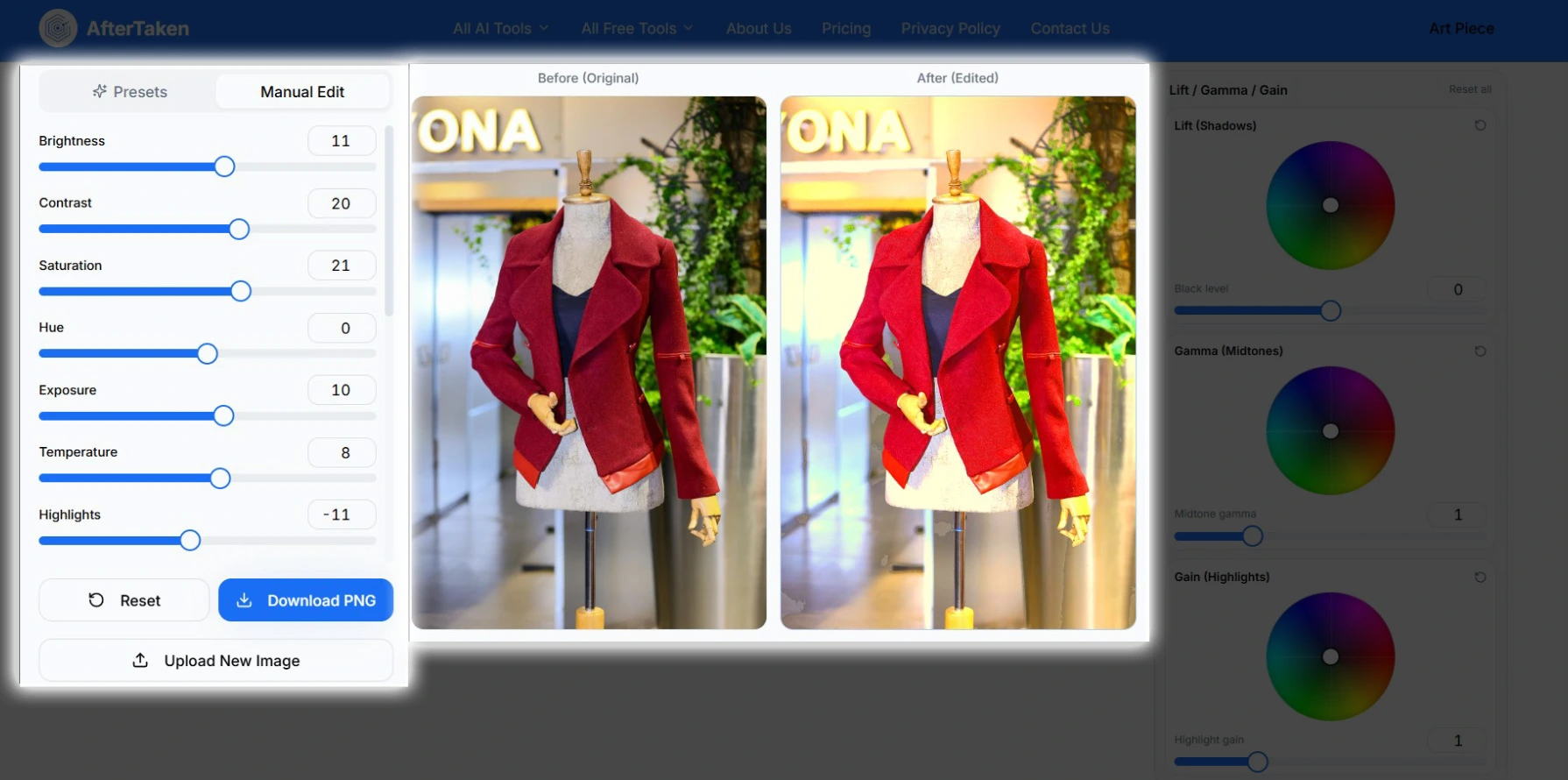
There are also two advance color adjustment feature to make your photo ultra fine tuning:
1. Tone Curve: Actually, tone curve feature s available on Photoshop but AfterTaken provide also this advance feature to fully color control for your Image. There are separate color adjustment curves such as; RGB, RED, GREEN and BLUE curves. Actually, the most popular is RGB curve to adjust contrast making “S” curve.
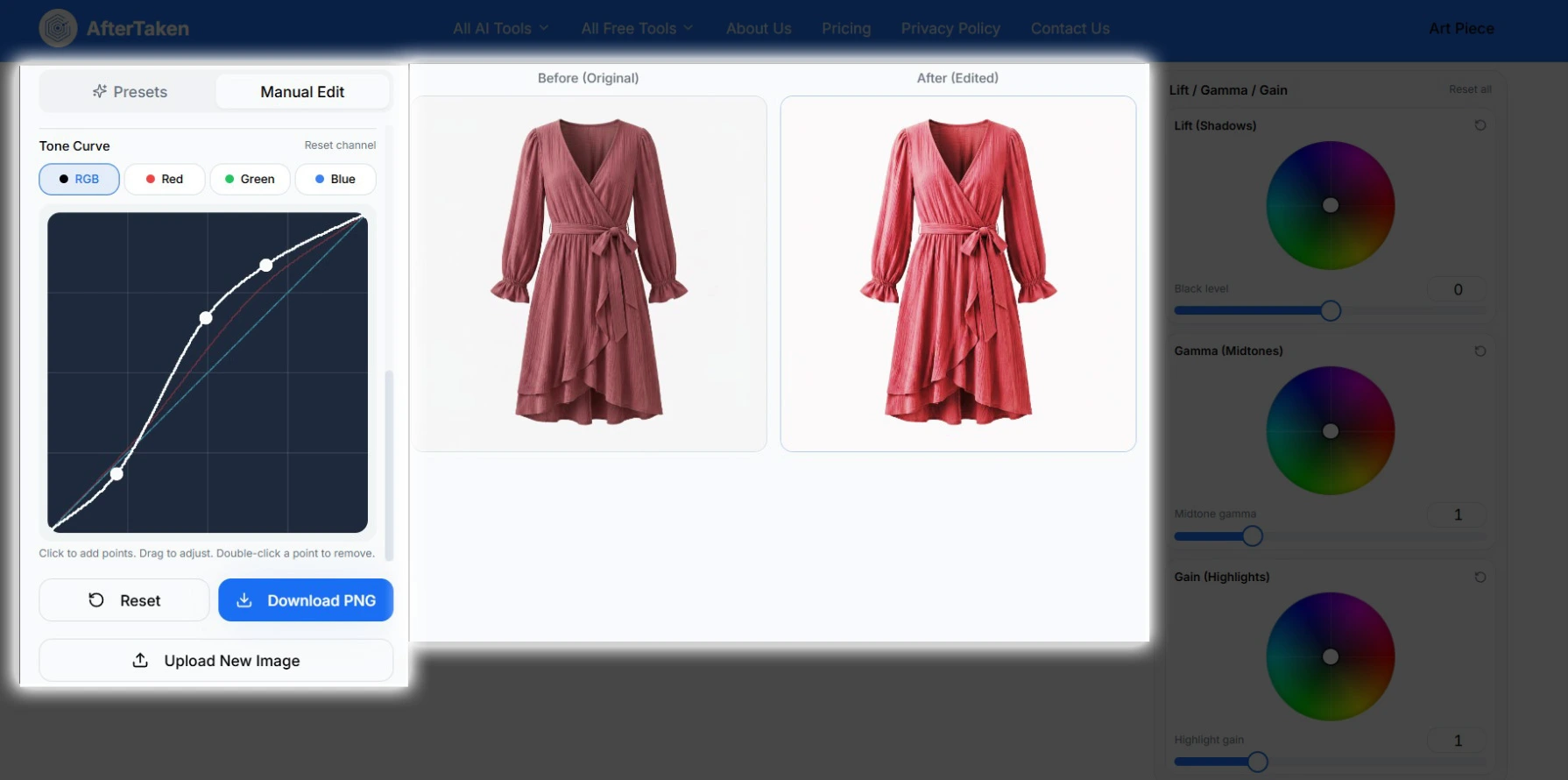
2. LIFT, GAMMA and GAIN (Color Wheels): There are again most popular feature of color grading in DaVinci Resolve but now, you will get these awesome feature in AfterTaken and yes, absolutely free. Actually, These color wheels have different intensions. Such as; Lift works as to adjust the intensity of black level, Gamma works as to adjust the midtones and Gain works as to adjust the highlights in the photo.
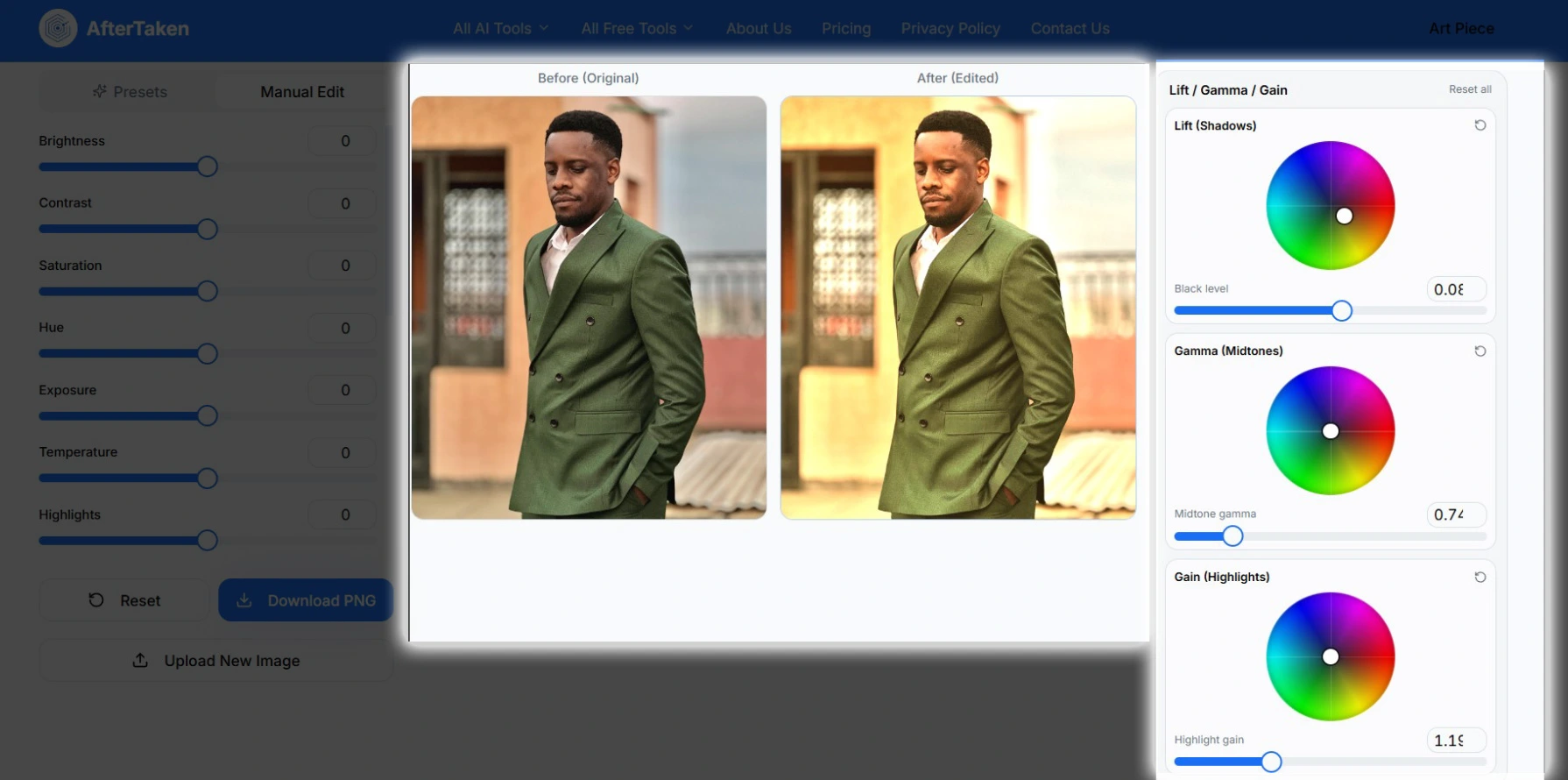
Try It Personally: Instantly restore lost vibrant depth and achieve studio lighting today with the AfterTaken AI Photo Color Correction tool at aftertaken.com/tools/ai-photo-color-correction
2. Fotor AI Photo Enhancer
Fotor is a powerhouse in the web-based photo editing ecosystem, and its dedicated automated coloring module is highly effective for casual creators. Serving as an all-in-one One-Click Image Color Fixer, Fotor analyzes global pixel contrast to balance dark exposures and lift compressed shadows.
Its interface is incredibly clean and accessible for non-designers. However, while Fotor delivers great results for general landscape and portrait photography, it can occasionally struggle with exact brand color matches for commercial e-commerce products, as its algorithms tend to lean toward a highly vibrant, social-media-ready aesthetic. The free tier gives you standard resolution downloads with some limitations.
3. Pixlr AI Express
Pixlr has long been a favorite option for web-based design, and their automated features provide quick, dependable optimization workflows. Pixlr excels at detecting exposure flaws and applying structural contrast repairs without deep manual interaction.
Pixlr’s engine operates beautifully on low-resolution or slightly compressed files, pulling back lost highlight details and stabilizing mixed white balance environments. It’s a fantastic daily tool if you want a quick, web-accessible framework to clean up basic images, though its free tier is supported by persistent dashboard ads which can occasionally slow down asset processing speeds.
4. VanceAI Photo Color Corrector
VanceAI offers a highly specialized web utility focused primarily on deep-learning adjustments for lighting and chromatic restoration. Their cloud models are designed to interpret depth data, applying intelligent color grading based on the detected subject matter.
It works exceptionally well for fading vintage photographs or fixing extremely underexposed outdoor shots. The major limitation of VanceAI is its strict configuration restrictions on the free tier—you get a limited handful of credits before requiring a paid transition, making it better suited for occasional high-priority restorations rather than bulk catalog processing.
5. Cutout.pro AI Photo Enhancer
Rounding out our top five is Cutout.pro, which hosts a variety of automated e-commerce optimization features. Their automated coloring engine isolates objects cleanly and applies localized lighting balancing curves to help bring out obscured fabric textures. It serves as a straightforward utility if you need a quick fix for simple apparel or asset cutouts.
While it delivers crisp edge detection, its automated color profiles can occasionally feel slightly heavy-handed with saturation levels, meaning you may need a secondary pass if you are trying to capture highly delicate, muted color tones.
| Tool Name | One-Click Fix | Manual Grading Sliders | Best Suited For |
| AfterTaken | Yes (Advanced) | Yes (Full Precision) | E-commerce Products & Brand Accuracy |
| Fotor | Yes (Standard) | Limited (Paid) | Social Media & Landscapes |
| Pixlr Express | Yes (Basic) | Yes (Standard) | Quick Daily Web Edits |
| VanceAI | Yes (Deep Learning) | No | Vintage Restorations & Lighting Fixes |
| Cutout.pro | Yes (Aggressive) | No | Simple Asset Cutouts |
In My Experience: How to Maintain Exact Color Integrity
Even the most powerful neural network can yield unpredictable results if your source material lacks structural detail. Based on my testing across thousands of asset pipelines, here is the ultimate workflow strategy to keep in mind:
1. Neutralize Your Environment: Always use a completely neutral gray or clean white studio backdrop. Colored surfaces naturally bounce tinted ambient light onto your primary subject, which creates complex chromatic reflections that confuse automated detection tools.
2. Save Hidden Metadata: Whenever possible, capture your original photos in your camera’s RAW format or uncompressed high-resolution modes. This retains vast amounts of sensory lighting data in the file metadata, allowing your AI tool to pull back details from deep highlights and dark shadows smoothly without creating digital pixel noise.
3. Combine Automatic & Manual Steps: Start by applying an automated preset pass to balance out the foundational color temperature and fix uneven exposures. Once the baseline is stabilized, switch over to manual adjustment mode to fine-tune the saturation so it perfectly mirrors your real-world item under standard daylight.
Final Verdict
Choosing the right tools depends completely on the volume and nature of your visual projects. If you are preparing content for social media feeds or editing casual travel photography, platforms like Fotor or Pixlr provide rapid, satisfactory adjustments.
However, if you are running an online business where an inaccurate color profile means a customer returns an item, you cannot afford to rely on generic filters. In my experience, utilizing a tool like AfterTaken AI Photo Color Correction gives you the exact precision required to scale production while keeping your presentation completely uniform and professional. Upload a few test images today and discover how a professional one-click workflow can completely transform your visual presentation.
Frequently Asked Questions (FAQs)
AfterTaken is currently the best free AI photo enhancer specifically designed to fix product image colors. Unlike generic editing apps that blindly increase saturation, AfterTaken uses localized masking to balance tones. In my experience, this is crucial for e-commerce platforms like Amazon or Shopify, where maintaining exact color accuracy directly impacts return rates and buyer trust.
Yes, absolutely. With advanced AI auto color correction online utilities, you can correct white balance in one click. Tools like AfterTaken scan the ambient light fields of your photo and instantly eliminate unrealistic yellow or blue color casts, making your backgrounds purely neutral and your product colors true to life.
A basic one-click image color fixer applies a global formula to increase contrast and brightness, which can sometimes ruin fine textures. On the other hand, a professional online color grading tool like AfterTaken first applies an automated AI optimization layer and then gives you granular manual sliders (warmth, tint, highlights, shadows) to fine-tune the output according to your precise brand guidelines.
Most generic tools fail because they cannot separate the product from the background. If you have a bright background, a standard tool might bleed those colors onto your garment. Using a specialized platform that treats the subject and background with separate AI layers prevents this distortion and ensures the product’s actual textures remain sharp and vivid.
Not anymore in 2026. While Photoshop is great for heavy manipulation, an AI auto color correction online tool handles exposure calibration and color balancing in a fraction of the time directly inside your web browser—completely eliminating the need for expensive software or complex editing skills.


Pingback: Best Free Color Grading for Photos in 2026 (Top 3 Online Tools)